Add your text
Paste or type the short passage you want to hear.
FREE ONLINE TEXT TO SPEECH
Sound Of Text WA is a free online text to speech tool that converts written text into natural-sounding voice using Google's Text to Speech technology. Type your message, choose a language, preview the audio instantly, and download a high-quality MP3 for WhatsApp or everyday use.
Whether you want to create a Sound Of Text WA message, hear the pronunciation of a word, prepare language learning materials, or generate a quick voice clip, Sound Of Text works directly in your browser on desktop and mobile devices without requiring an account or software installation.
VOICE GENERATOR
Each line or paragraph will become a separate audio item.
Enter text, choose a voice, then select Generate audio.
HISTORY
No audio has been generated yet.
HOW IT WORKS
Paste or type the short passage you want to hear.
Match the voice language to your text for clearer pronunciation.
Play it immediately or open the audio in a new tab.
Sound Of Text is an online tool that turns the text you type into spoken audio. Instead of recording a message yourself, you can enter the words, select the appropriate language, and let the tool create the sound for you.
Once the audio is ready, you can play it directly on the page. If the result sounds right, download the MP3 and keep it on your device or share it through an app such as WhatsApp.
This straightforward process is one reason people continue to look for Sound Of Text. There is no editing timeline to learn and no long setup before you can hear the result. It is especially convenient for short messages, pronunciation examples, reminders, and personal audio clips.
Many visitors also search for Sound Of Text WA or Sound Of Text WhatsApp. In this context, “WA” simply refers to WhatsApp: users create a short clip with Sound Of Text, download the MP3, and then attach it to a chat or group.
Sound Of Text works best when the selected language matches the words you enter. Short, clearly punctuated sentences are also easier to review and usually sound better than one long paragraph.
You can use Sound Of Text from a phone or a computer. The screen may look slightly different depending on the device, but the basic process is the same.
Start with the exact words you want the voice to say. Read the sentence once before generating it. A missing comma, a typo, or an abbreviation that only makes sense to you can change the way the audio sounds.
Short sentences are forgiving. Long sentences are not. If a message contains several ideas, split it into two or three clips. This makes corrections easier and gives you more control when sharing the files on WhatsApp.
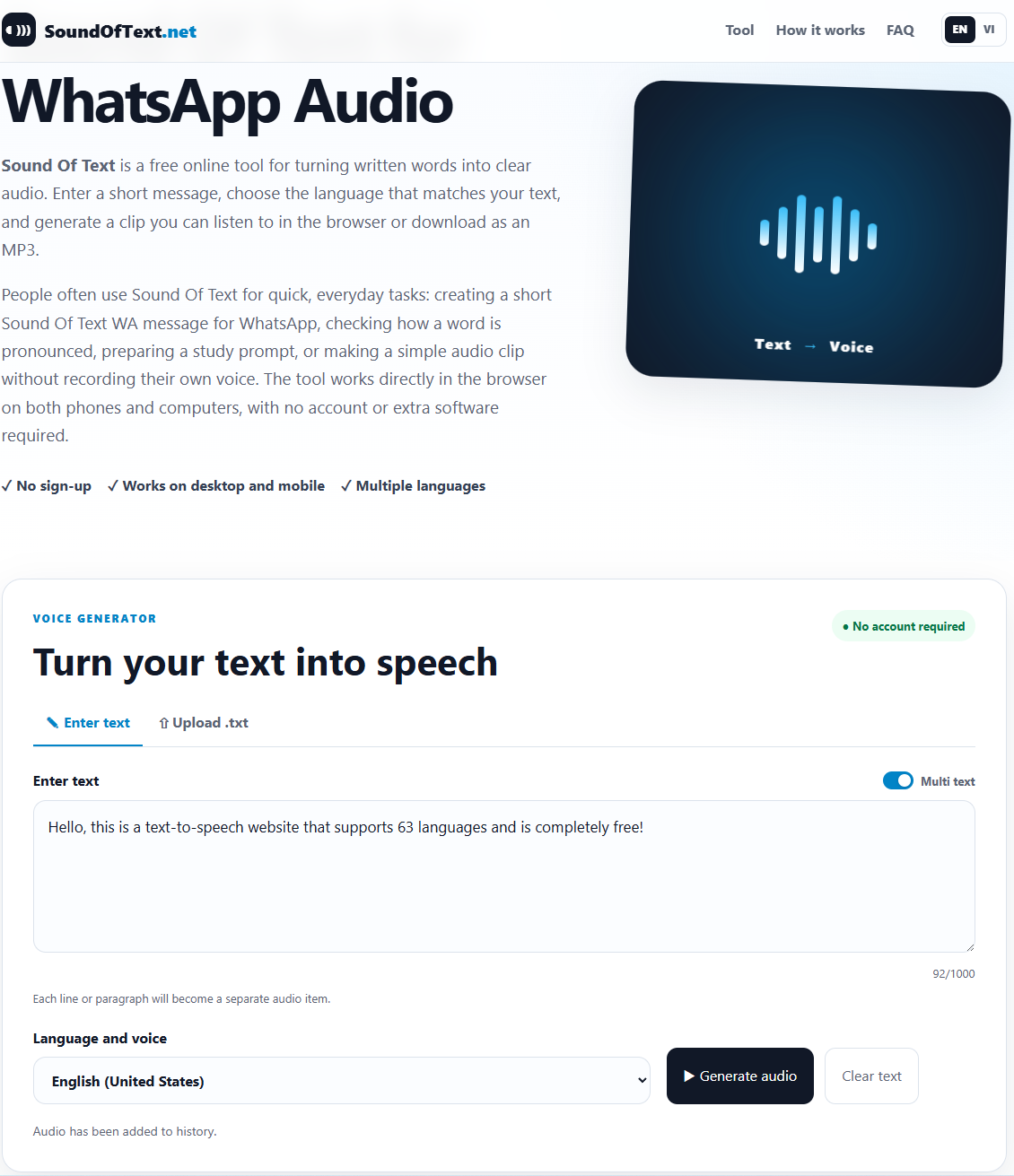
This step has more effect on the result than most people expect. If the sentence is written in Indonesian, choose Indonesian. If it is written in English, choose the English option that best fits the pronunciation you want. Using the wrong language may still produce sound, but names and ordinary words can come out strangely.
Mixed-language messages are harder. A sentence that jumps between Indonesian and English may sound acceptable in one place and awkward in another. When clarity matters, create one clip for each language instead of forcing both into the same recording.
Select the generate button and wait for the new item to appear below the form. The clip includes an audio player, so you can listen before saving it. If you create more than one clip, the recent items stay together in the history area on that browser.
The multi-text option is useful when you already have several separate lines. Instead of pasting and generating them one by one, place each message on its own line and let the tool create individual clips.
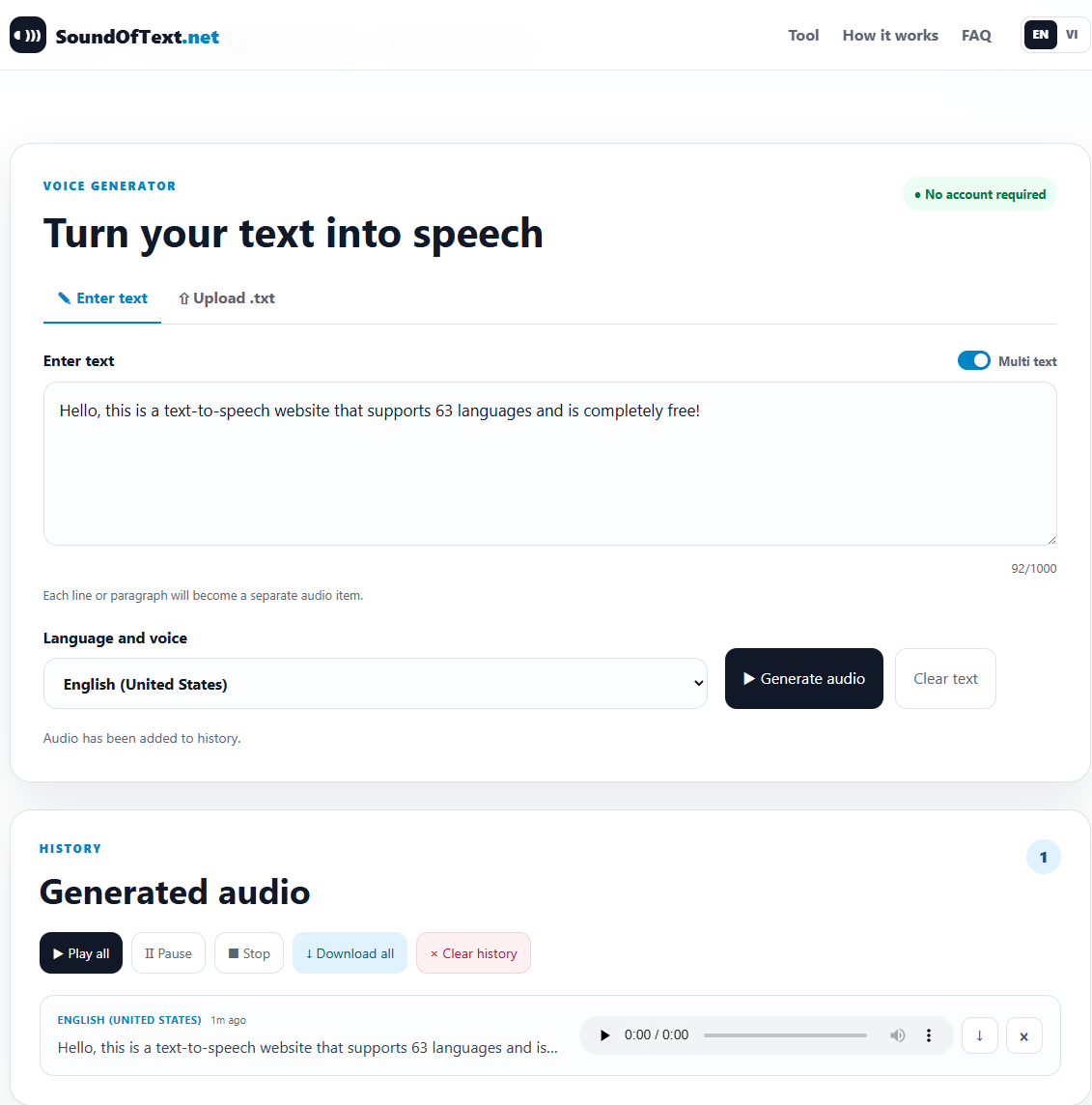
Do not skip this part. Play the whole clip, including the ending. Check personal names, place names, prices, dates, and numbers. Those are the parts most likely to need a small rewrite.
If a sentence sounds rushed, add punctuation. If a name sounds wrong, try spelling it the way it should sound rather than the way it is normally written. There is no single trick that fixes every unusual word, so a quick listen is still the best quality check.
When the audio sounds right, use the download button beside the player. On most phones, the file goes to the Downloads folder. On a computer, it goes to the download location set in your browser.
From there, you can attach the MP3 in WhatsApp, keep it for later, or use it in another personal project. The exact sharing menu varies between Android, iPhone, WhatsApp Web, and desktop apps, but the audio file itself is a standard MP3.
There is no dashboard to configure and no project setup. You arrive, enter the text, and create the clip. That is especially helpful on mobile, where every extra screen makes a small task feel longer than it should.
Sound Of Text WA is not about replacing normal voice messages. It is useful when you cannot record, do not want background noise in the clip, or need the same message to sound consistent each time.
A teacher might send a pronunciation example. A shop owner might prepare a short pickup reminder. A friend might create a funny greeting for a group chat. The tool fits these small jobs better than a complex audio platform.
Generated audio is not automatically perfect. The built-in player lets you catch mistakes before the file leaves your device. That small pause between generating and sharing is valuable. It prevents an incorrect date, badly spoken name, or awkward sentence from reaching a whole WhatsApp group.
You do not need to register just to create a short clip. That keeps the process fast and avoids collecting profile details that are not needed for the task.
Even so, do not enter passwords, private account numbers, confidential work material, or anything you would not want sent to a third-party speech service. The text has to be processed in order to create the audio.
The history section makes it easier to compare versions. You can keep the first attempt, adjust the wording, generate another, and decide which one sounds better.
This history is a convenience, not permanent storage. Browser cleanup, private mode, or clearing site data can remove it. Download any file you care about.
MP3 works almost everywhere. It can be played on common phones and computers, attached to chats, and opened by ordinary media players. You are not locked into a special format that only works on SoundOfText.net.
Sound Of Text includes a wide range of language choices, including commonly used options such as English, Indonesian, Vietnamese, Spanish, French, German, Portuguese, Italian, Dutch, Japanese, Korean, Chinese, Hindi, Thai, Turkish, Polish, Russian, and Arabic.
Some languages may include regional versions. English is the obvious example: a United States option may pronounce a word differently from a United Kingdom or Australian option. Choose the one that sounds closest to the audience you have in mind.
The language list is only part of the result. The text itself still matters. Slang, usernames, brand names, abbreviations, and local place names may need adjustment. A voice can read ordinary words well and still stumble over a name that does not follow normal spelling rules.
For Sound Of Text WhatsApp messages, clarity matters more than novelty. Use the language your recipient expects, keep the sentence direct, and avoid switching languages in the middle unless you have already checked how it sounds.
This is the most obvious use. Create a birthday greeting, a welcome message, a reminder, or a playful line and send the MP3 to a contact or group. Short clips work best because they open quickly and are easy to replay.
A spoken announcement can stand out in a busy group chat. Sound Of Text can help with simple notices such as a meeting time, pickup reminder, classroom instruction, or event update.
Check every detail before sharing. If the message includes a time, date, address, or price, listen twice. A natural-sounding clip can still contain the wrong information if the original text was wrong.
Type a word or sentence, choose the matching language, and listen to the result. This is useful for a quick reference, especially when studying alone.
It should not be treated as the final authority on every accent or name. For important language learning, compare the clip with a teacher, dictionary recording, or native speaker.
Some people would rather hear a short instruction than read a block of text. Turning a note into audio can make it easier to follow while walking, cooking, working, or using a small phone screen.
A generated clip can help you judge timing before you record a final voiceover. It is useful for checking whether a caption is too long for a scene or whether a short script sounds awkward when spoken.
Before publishing generated audio commercially, check the rules of the platform and the terms that apply to the underlying speech service.
Teachers, parents, and students can prepare vocabulary prompts, spelling words, listening questions, or short instructions. Separate clips are often better than one long recording because the listener can replay only the part they need.
If the same short sentence needs to be sent more than once, a saved MP3 can be practical. You generate it once, check it, and reuse the file instead of recording the message again in a noisy place.
A sentence can look fine and still sound clumsy. Read it aloud once yourself. If you run out of breath or lose track of the point, the generated version will probably feel long too.
Commas create small pauses. Periods create clearer breaks. Question marks can help the voice lift naturally at the end of a question. Do not scatter punctuation everywhere, but use it where a listener would expect to pause.
A number can be read as a date, a quantity, or a string of digits. If the first result is unclear, write the number in words or separate the digits. This is worth doing for phone numbers, order numbers, room numbers, and prices.
Names are easier to adjust when they are not buried inside a long paragraph. Generate a short test first. Once the pronunciation sounds acceptable, place the name back into the complete message.
Decorative characters, repeated punctuation, emoji names, and unusual separators can produce unexpected pauses or spoken labels. Remove anything that does not need to be heard.
A greeting, an instruction, and an address are three different pieces of information. Put them into separate clips when possible. Your recipient can replay the address without listening to the greeting again.
Normal speed tends to be the easiest to understand. Slow the clip down for study material or detailed instructions. Speed it up only after checking that every word remains clear.
When several attempts are visible in history, it is easy to save the wrong one. Play the final version once more, then download from that same item.
These answers cover the questions people most often have when using Sound Of Text for WhatsApp and everyday audio clips.
Sound Of Text is most useful when you need a short audio clip without turning the task into a project. Type the message, choose the language, listen, make a correction if needed, and save the MP3.
For Sound Of Text WA, shorter is usually better. One clear idea per clip makes the message easier to understand and easier to share on WhatsApp. Punctuation helps, the correct language matters, and listening before downloading prevents most avoidable mistakes.
Use the tool responsibly. Do not enter sensitive information, pretend to be another person, or share audio that could mislead the listener. For ordinary greetings, reminders, study prompts, and short WhatsApp messages, SoundOfText.net keeps the process simple.
FAQ
Sound Of Text is an online tool that turns the words you enter into playable audio. You can listen in the browser and download the result as an MP3.
Sound Of Text WA usually means using Sound Of Text to create an audio file for WhatsApp. WA is a common abbreviation for WhatsApp.
Enter the message, select the correct language and speed, generate the audio, listen to it, and download the MP3. You can then attach that file in WhatsApp.
Yes. You can use the main SoundOfText.net tool without paying or creating an account. Temporary service limits may still apply.
Yes. It works in current mobile browsers on Android and iPhone. The location of downloaded files and the WhatsApp sharing steps may differ by device.
Yes. After a clip is generated, use the download control beside its audio player to save the MP3.
Names and local place names do not always follow normal spelling rules. Try a phonetic spelling, use the correct language, and test the name in a short sentence first.
Yes. Enable the multi-text option and place each message on a separate line. SoundOfText.net can create separate audio items for those lines.
No. Recent items may remain in your browser history area, but browser cleanup or private mode can remove them. Download important clips.
A request may fail because the connected speech service is temporarily unavailable, the text is too long, or a usage limit has been reached. Try a shorter message and generate it again.
Yes. Use WhatsApp's attachment controls to select the downloaded MP3. Review the message first and do not use generated audio to impersonate or mislead people.
Check the applicable terms of the speech provider and the platform where you plan to publish. You are responsible for the text, permissions, and final use of the audio.
